26 — 大型项目的代码结构
简介
到目前为止,所有练习都足够小,可以放进一个 JavaScript 文件里,而不至于太费劲。我们通过块注释来分隔代码的不同部分,并且滚动了很多次。
但现实中的项目往往有更多的代码。把所有东西像意大利面一样纠缠在一个文件里,很快就会成为问题。例如:
- 很难找到你想要的内容。
- 很难重用特定的部分。
- 你需要确保变量不会与其他变量产生冲突。
- 如果你与其他开发者协作,你们会在那个文件上产生大量冲突。
- 你会因为不得不滚动太多而开始手指抽筋。
- 等等。
我们需要一种以更易维护的方式来组织代码的方法。
虽然本课程专注于 Three.js,但这一课我们将学习诸如类和模块之类的 JavaScript 概念。在组织代码时,它们会变得非常有用。
在接下来的课程内容中,我会向你展示我(Bruno Simon)喜欢如何组织我的代码。这基于非常个人的偏好,你可能并不认同,而且你可能是对的。请随时创建你自己的结构,只采纳以下建议中你认为不错的部分。
在课程的其余部分中,为了简单起见,并且考虑到你们中的一些人可能对这里将要学到的内容不太熟悉,我们将不会使用本课中介绍的结构。我们会继续把所有 JavaScript 都写在一个文件里(意大利面风格)。但如果你愿意尝试本课中的新结构,你可以把后续课程改造成新的方式或你自己的结构。
模块
模块是用于组织代码的最重要特性之一。其思路是把代码拆分成多个文件,并在需要时导入这些文件。
实际上,当我们像这样导入依赖时,已经在使用模块了:
import * as THREE from 'three'
import gsap from 'gsap'
但这一次,我们将导入我们自己的代码。
兼容性
使用 Vite 时,我们所有的导入都会被合并到一个文件中,该文件可在大多数浏览器上运行。这样,我们甚至不用操心模块的兼容性。
此外,现在大多数现代浏览器无需使用打包工具就能原生支持模块。但是,出于几个原因,我们不会使用这种原生支持:
- 并非所有浏览器都兼容它(Can I Use)。
- 出于其他原因(如 NPM 依赖、shader 文件集成(课程后面会讲)、本地服务器等),我们本来就需要 Vite。而且 Vite 原生支持模块。
语法
我们暂时忽略项目当前的状态,专注于语法。
在 /src/script.js 中,把所有内容都注释掉(甚至包括 CSS 导入)。
在 /src/ 文件夹中,创建一个 test.js 文件。我们将往该文件中添加内容,并将其导入到 script.js。
一个文件可以导出一个或多个内容,但为了保持简单,我喜欢每个文件只导出一个内容。
为此,在 test.js 中编写以下代码:
export default 'Hello modules'然后,要将这段代码导入 /src/script.js,请编写以下代码:
import test from './test.js'

console.log(test)
就这样。检查你的控制台,你应该会看到 Hello modules。
一个非常重要的细节是,路径以 ./ 开头。当我们引用一个文件时,必须这样做,否则构建工具会尝试在 node_modules 文件夹中查找它。
这里我们导出了一个字符串,这并不太有用。但我们可以导出函数:
// test.js
export default () =>
{
    console.log('Hello modules')
}

// scripts.js
import test from './test.js'

test()
我们也可以导出对象:
// test.js
export default {
    hello: 'modules'
}

// scripts.js
import test from './test.js'

console.log(test)
我们也可以导出类,但稍后再看这个。
export 指令也可以写在对象之后:
// test.js
const somethingToExport = {
    hello: 'modules'
}

export default somethingToExport
正如我之前所说,一个文件可以导出多个内容:
// test.js
const oneThing = {
    hello: 'modules'
}

const anotherThing = () =>
{
    console.log('Hi!')
}

export { oneThing, anotherThing }

// scripts.js
import { oneThing, anotherThing } from './test.js'

console.log(oneThing)
anotherThing()
通过导出多个内容,我们不必把模块中的所有内容都导入进来。我们可以选择我们想要的部分:
// script.js
import { oneThing } from './test.js'

console.log(oneThing)
实际上,Three.js 的类正是通过这种方式在不导入整个库的情况下被导入的。
目前,当我们导入 Three.js 时,我们会这样做:
import * as THREE from 'three'从 three 导出的所有内容都将在 THREE 变量中可用。但我们也可以像这样导入特定的类:
import { SphereGeometry } from 'three'但同样,我们不会使用这个特性,我们的每个文件都只导出一个内容。
类
既然我们知道了如何把代码拆分成多个文件,那么究竟应该导出和导入什么呢?
我们将使用类来进行导出和导入。类让我们可以在 JavaScript 中使用面向对象编程。
兼容性
大多数浏览器都支持类(Can I Use),因此我们可以毫无障碍地使用它们。
创建一个类
删除与模块相关的代码(包括 test.js 文件),并让其余代码保持注释状态。现在我们将专注于类。
要创建一个类,请在 /src/script.js 中使用以下语法:
class HelloClass {}如果你现在测试这段代码,什么也不会发生,因为我们的类目前是空的,而且我们还没有在代码的其他地方使用它。但是,在下面示例的类中,我们将把一些代码放在 {} 之间。
另外,你应该注意,按照约定,类名通常使用 PascalCase,即每个单词的首字母大写。
实例化类
类就像一张蓝图。我们可以用那张蓝图来创建一个对象。我们也可以用那张蓝图来创建多个对象。
让我们设想我们的类是一张用来创建机器人的蓝图:
class Robot {}要用那张蓝图创建一个机器人,我们需要这样写:
const robot = new Robot()
console.log(robot)
就这样。虽然这个类什么也不做,因此我们的 robot 变量也什么都不做,但我们还是用 Robot 类创建了一个机器人。
robot 变量就是我们所说的类的实例。
如前所述,我们也可以创建该类的多个实例:
class Robot {}

const wallE = new Robot()
const ultron = new Robot()
const astroBoy = new Robot()
所有这些机器人都会基于同一个类。
方法
这很不错,但我们的机器人什么也做不了。我们可以像这样给机器人添加函数:
class Robot
{
    sayHi()
    {
        console.log('Hello!')
    }
}类内部的函数被称为方法,该类的每个实例都会拥有这些方法。
现在,我们的每个机器人都可以打招呼了。
ultron.sayHi()
astroBoy.sayHi()
但这些机器人不对它们的创造者说一声“谢谢你”就被创造出来,是多么没礼貌啊!
如果你给类添加一个名为 constructor 的方法,那么在实例化时,这个方法会被自动调用:
class Robot
{
    constructor()
    {
        console.log('Thank you creator')
    }

    sayHi()
    {
        console.log('Hello!')
    }
}
现在,用这个类创建的每个机器人在实例化时都会自动说“谢谢你,造物主”。
我们也可以给这个 constructor 提供参数。
为了说明这一点,我们给每个机器人都起一个名字:
const wallE = new Robot('Wall-E')
const ultron = new Robot('Ultron')
const astroBoy = new Robot('Astro Boy')
为了在类中获取这些名字,我们可以给 constructor 函数添加参数:
class Robot
{
    constructor(name)
    {
        console.log(`I am ${name}. Thank you creator`)
    }

    sayHi()
    {
        console.log('Hello!')
    }
}
上下文
但如果我们还想让机器人在打招呼时说出自己的名字呢?
我们已经把名字发送给了 constructor,我们不想再把它发送给 sayHi 函数。我们想要的是让机器人记住自己的名字。
我们可以用 this 来做到这一点。编写以下代码:
class Robot
{
    constructor(name)
    {
        this.name = name

        console.log(`I am ${this.name}. Thank you creator`)
    }

    sayHi()
    {
        console.log('Hello!')
    }
}
this 就是我们所说的上下文。虽然每个实例的类都是相同的,但类的每个实例的上下文都会不同。
在我们的例子中,this 就是机器人本身。
this 可以在每个方法中访问,这就是为什么我们现在可以在 sayHi 函数中获取机器人的名字:
class Robot
{
    // ...

    sayHi()
    {
        console.log(`Hello! My name is ${this.name}`)
    }
}
name 就是我们所说的类的属性。我们可以添加更多属性:
class Robot
{
    constructor(name, legs)
    {
        this.name = name
        this.legs = legs

        console.log(`I am ${this.name}. Thank you creator`)
    }

    // ...
}

const wallE = new Robot('Wall-E', 0)
const ultron = new Robot('Ultron', 2)
const astroBoy = new Robot('Astro Boy', 2)
我们也可以在类的外部从实例访问属性:
// ...

const wallE = new Robot('Wall-E', 0)
const ultron = new Robot('Ultron', 2)
const astroBoy = new Robot('Astro Boy', 2)

console.log(wallE.legs)
方法也可以通过上下文访问,我们可以在 constructor 中让机器人自动打招呼:
class Robot
{
    constructor(name, legs)
    {
        this.name = name
        this.legs = legs

        this.sayHi()

        console.log(`I am ${this.name}. Thank you creator`)
    }

    // ...
}
继承
继承就像是基于另一个类创建一个类。在某种程度上,我们基于另一张蓝图创建了一张蓝图。
基类的所有方法都会在新类中可用。
为了说明这一点,让我们给机器人添加一个功能,让它们能够飞行。但并不是每个机器人都像 Wall-E 那样能飞。不过,每个机器人都需要一个名字和腿。
要基于另一个类创建类,请使用 extends 关键字。在 Robot 类之后创建以下类:
class FlyingRobot extends Robot
{

}
我们创建了一个 FlyingRobot 类,现在可以用它来表示能够飞行的机器人:
const wallE = new Robot('Wall-E', 0)
const ultron = new FlyingRobot('Ultron', 2)
const astroBoy = new FlyingRobot('Astro Boy', 2)
目前,这个 FlyingRobot 并没有给 Robot 类增添任何东西,但我们可以像这样添加方法:
class FlyingRobot extends Robot
{
    takeOff()
    {
        console.log(`Have a good flight ${this.name}`)
    }

    land()
    {
        console.log(`Welcome back ${this.name}`)
    }
}
用 FlyingRobot 实例化的机器人仍然能够打招呼,但现在它们也能够起飞和降落了:
astroBoy.sayHi()
astroBoy.takeOff()
astroBoy.land()
但如果我们尝试对 Wall-E 做同样的事情:
wallE.takeOff()我们会得到一个错误。Wall-E 不是 FlyingRobot 的实例,因此不能起飞。
给 FlyingRobot 类提供一个同名的方法,会覆盖该方法在 Robot 类中的行为:
class FlyingRobot extends Robot
{
    sayHi()
    {
        console.log(`Hello! My name is ${this.name} and I am a flying robot`)
    }

    // ...
}
但如果你想提供一个不同的 constructor,你必须在方法开头使用 super() 并向它发送所需的参数:
class FlyingRobot extends Robot
{
    constructor(name, legs)
    {
        super(name, legs)

        this.canFly = true
    }

    // ...
}
super 对应于基类(Robot),使用 super() 就像是调用基类的 constructor,这样我们在基类 constructor 中所做的一切也会在新类中完成。
我们也可以用 super 来调用基类的方法。例如,我们可以让机器人像以往那样打招呼,然后在另一条日志中说明它是一个会飞的机器人:
class FlyingRobot extends Robot
{
    sayHi()
    {
        super.sayHi()

        console.log('I am a flying robot')
    }

    // ...
}
但这种方法往往会让代码变得复杂。
关于类就讲到这里。
将类和模块结合起来
这里的思路是,我们将把代码拆分成多个文件,每个文件都导出一个不同的类。
为了用机器人来说明这一点,创建一个 /src/Robot.js 文件,并把 Robot 类放进去,但在开头加上 export default:
export default class Robot
{
    constructor(name, legs)
    {
        this.name = name
        this.legs = legs

        console.log(`I am ${this.name}. Thank you creator`)

        this.sayHi()
    }

    sayHi()
    {
        console.log(`Hello! My name is ${this.name}`)
    }
}
现在创建一个 /src/FlyingRobot.js 文件,并把 FlyingRobot 类放进去,但在开头加上 export default:
export default class FlyingRobot extends Robot
{
    constructor(name, legs)
    {
        super(name, legs)

        this.canFly = true
    }

    sayHi()
    {
        console.log(`Hello! My name is ${this.name} and I'm a flying robot`)
    }

    takeOff()
    {
        console.log(`Have a good flight ${this.name}`)
    }

    land()
    {
        console.log(`Welcome back ${this.name}`)
    }
}
不过,在导入它们之前,我们需要先解决一个问题。
FlyingRobot 继承自 Robot,但该文件中并没有 Robot。我们需要先导入那个类才能引用它。
添加以下导入:
import Robot from './Robot.js'

export default class FlyingRobot extends Robot
{
    // ...
在 /src/scripts.js 中,我们现在可以导入并使用这些类:
import Robot from './Robot.js'
import FlyingRobot from './FlyingRobot.js'

const wallE = new Robot('Wall-E', 0)
const ultron = new FlyingRobot('Ultron', 2)
const astroBoy = new FlyingRobot('Astro Boy', 2)
这样一来,我们创建机器人的代码一下子变得非常简单。
起初,这一切可能看起来有点复杂,但你的代码会变得更容易维护,而且你只需复制需要的类,就能在不同的项目中重用它们。
组织我们的项目
是时候在我们的项目中使用这些新知识了。
删除我们上面添加的代码,并删除与机器人相关的文件。
如果你取消项目代码的注释,你会看到一个简单场景,地板上有一只狐狸。
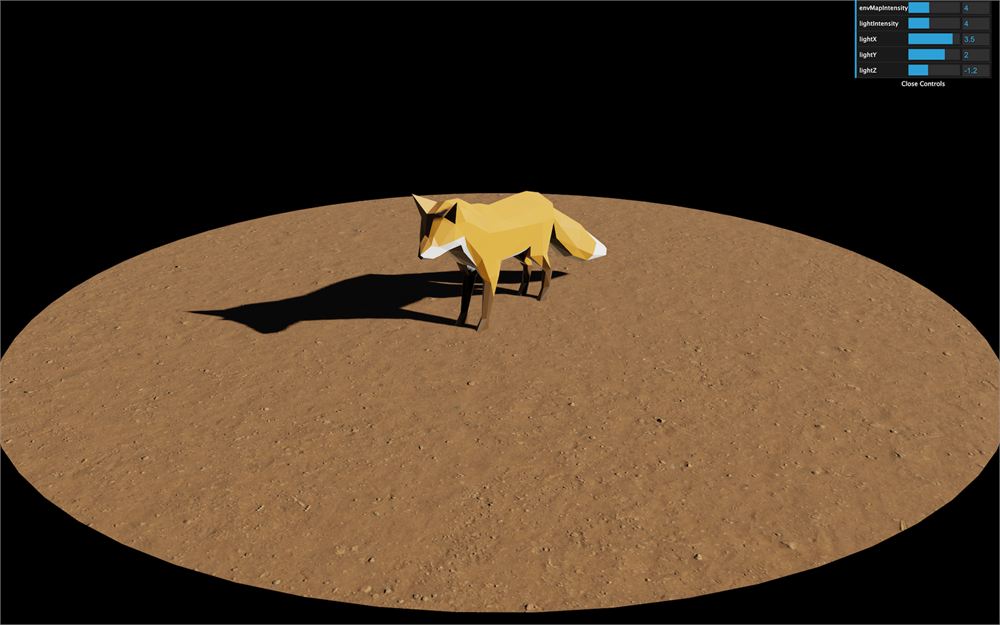
我们将保留现有的代码,并把它一点一点地移入各个类中。
再次注释掉整个代码。
Experience 类
一个好的做法是把整个体验放进一个主类中,再由它创建其他所有内容。如果你的 WebGL 体验是包含 HTML 内容、其他页面等的更大网站的一部分,这一点尤其有用。
与你的体验相关的代码将独立于其余代码,但仍然可以通过该类以及你在该类中提供的所有方法和属性来访问。
至于该类的名字,我喜欢用 Experience,但它也可以是 MySuperGame、WebGLAwesomeStuff、Application 或者任何你喜欢的名字。
创建并实例化类
在 /src/ 文件夹中,创建一个 Experience/ 文件夹,然后在该 /src/Experience 文件夹中创建一个 Experience.js 文件。
在该文件中,像这样导出一个类:
export default class Experience
{
    constructor()
    {
        console.log('Here starts a great experience')
    }
}
所有与体验相关的类都将放在那个文件夹中。
在 /src/script.js 中,我们可以导入并实例化该类:
import Experience from './Experience/Experience.js'

const experience = new Experience()

有时,能够直接从控制台访问体验会很有用。但当前的作用域使这无法实现。
我们可以做的是把实例保存在 window 中。为此,我们可以在 constructor 中直接使用上下文:
export default class Experience
{
    constructor()
    {
        // Global access
        window.experience = this
    }
}
现在我们可以通过输入 window.experience,甚至直接输入 experience 来从控制台访问体验,因为在 JavaScript 中 window 是隐式的(真是个怪咖)。
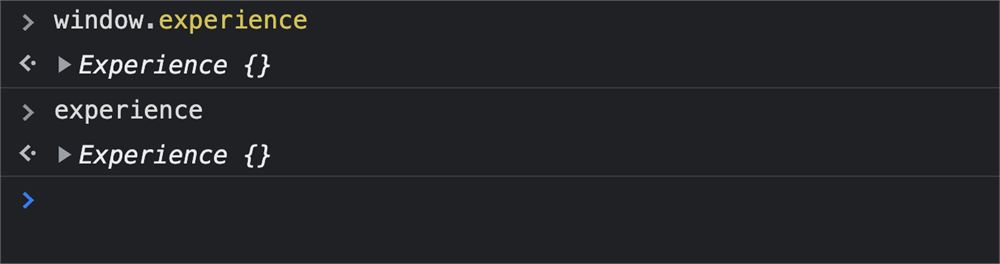
要小心,这是一个并非人人都喜欢的小技巧,而且如果你有多个体验,最后一个会覆盖前面的。
Canvas
在实例化 Experience 时,我们会把 canvas 作为参数发送,这样在其他情况下使用我们类的其他开发者就能够选择他们想使用哪个 <canvas>。
在 /src/script.js 中实例化时,使用 querySelector() 来发送 canvas 参数:
const experience = new Experience(document.querySelector('canvas.webgl'))然后,在类中把它保存为一个属性:
export default class Experience
{
    constructor(canvas)
    {
        // ...

        // Options
        this.canvas = canvas
    }
}
这是本课中我们唯一需要的参数,但你可以发送任何你想要的参数来改变体验。
有用的类
还有一些类在整个项目中随手可用,而且很可能在你今后的项目中派上用场。如你所见,这些类并不一定与 WebGL 或 Three.js 相关。这就是为什么我们要把它们放进 /src/Experience/Utils/ 文件夹,我们现在就来创建它。
Sizes
第一个有用的类是用来处理体验尺寸的类。它将包含视口的宽度和高度,以及屏幕的像素比。
我们将在发生 resize 时更新这些值,但我们也会把这次 resize 通知给体验。
在 /src/Experience/Utils/ 文件夹中,创建 Sizes.js 类:
export default class Sizes
{
    constructor()
    {
    }
}
然后在 Experience 类中实例化它:
import Sizes from './Utils/Sizes.js'

export default class Experience
{
    constructor(canvas)
    {
        // ...

        // Setup
        this.sizes = new Sizes()
    }
}
在那个 Sizes 类中,像我们之前那样添加常用的 width、height 和 pixelRatio,但把它们保存为属性:
export default class Sizes
{
    constructor()
    {
        // Setup
        this.width = window.innerWidth
        this.height = window.innerHeight
        this.pixelRatio = Math.min(window.devicePixelRatio, 2)
    }
}
然后监听 resize 事件并更新这些属性:
export default class Sizes
{
    constructor()
    {
        // ...

        // Resize event
        window.addEventListener('resize', () =>
        {
            this.width = window.innerWidth
            this.height = window.innerHeight
            this.pixelRatio = Math.min(window.devicePixelRatio, 2)
        })
    }
}
这里我们假设体验总是填满视口。如果不是这种情况,你就得换一种方式处理。
我们现在可以从 Experience 类访问 width、height 和 pixelRatio:
import Sizes from './Utils/Sizes.js'

export default class Experience
{
    constructor(canvas)
    {
        // ...

        this.sizes = new Sizes()

        console.log(this.sizes.width)
        console.log(this.sizes.height)
        console.log(this.sizes.pixelRatio)
    }
}
在某个时候,当发生 resize 时,我们还需要更新其他值,比如 camera 或 renderer。我们可以像刚才那样在 window 上监听 resize 事件,但取而代之,我们将使用 Sizes 类来把这一变化通知给其他类。
事件发射器
我们现在要做的是对 Sizes 类做一点小改动,让它能够触发事件。之后,我们将监听这些事件。
为此,我们要让该类继承一个 EventEmitter 类。
把下面这个 EventEmitter 类添加到 /src/Experience/Utils/ 文件夹:
export default class EventEmitter
{
    constructor()
    {
        this.callbacks = {}
        this.callbacks.base = {}
    }

    on(_names, callback)
    {
        // Errors
        if(typeof _names === 'undefined' || _names === '')
        {
            console.warn('wrong names')
            return false
        }

        if(typeof callback === 'undefined')
        {
            console.warn('wrong callback')
            return false
        }

        // Resolve names
        const names = this.resolveNames(_names)

        // Each name
        names.forEach((_name) =>
        {
            // Resolve name
            const name = this.resolveName(_name)

            // Create namespace if not exist
            if(!(this.callbacks[ name.namespace ] instanceof Object))
                this.callbacks[ name.namespace ] = {}

            // Create callback if not exist
            if(!(this.callbacks[ name.namespace ][ name.value ] instanceof Array))
                this.callbacks[ name.namespace ][ name.value ] = []

            // Add callback
            this.callbacks[ name.namespace ][ name.value ].push(callback)
        })

        return this
    }

    off(_names)
    {
        // Errors
        if(typeof _names === 'undefined' || _names === '')
        {
            console.warn('wrong name')
            return false
        }

        // Resolve names
        const names = this.resolveNames(_names)

        // Each name
        names.forEach((_name) =>
        {
            // Resolve name
            const name = this.resolveName(_name)

            // Remove namespace
            if(name.namespace !== 'base' && name.value === '')
            {
                delete this.callbacks[ name.namespace ]
            }

            // Remove specific callback in namespace
            else
            {
                // Default
                if(name.namespace === 'base')
                {
                    // Try to remove from each namespace
                    for(const namespace in this.callbacks)
                    {
                        if(this.callbacks[ namespace ] instanceof Object && this.callbacks[ namespace ][ name.value ] instanceof Array)
                        {
                            delete this.callbacks[ namespace ][ name.value ]

                            // Remove namespace if empty
                            if(Object.keys(this.callbacks[ namespace ]).length === 0)
                                delete this.callbacks[ namespace ]
                        }
                    }
                }

                // Specified namespace
                else if(this.callbacks[ name.namespace ] instanceof Object && this.callbacks[ name.namespace ][ name.value ] instanceof Array)
                {
                    delete this.callbacks[ name.namespace ][ name.value ]

                    // Remove namespace if empty
                    if(Object.keys(this.callbacks[ name.namespace ]).length === 0)
                        delete this.callbacks[ name.namespace ]
                }
            }
        })

        return this
    }

    trigger(_name, _args)
    {
        // Errors
        if(typeof _name === 'undefined' || _name === '')
        {
            console.warn('wrong name')
            return false
        }

        let finalResult = null
        let result = null

        // Default args
        const args = !(_args instanceof Array) ? [] : _args

        // Resolve names (should on have one event)
        let name = this.resolveNames(_name)

        // Resolve name
        name = this.resolveName(name[ 0 ])

        // Default namespace
        if(name.namespace === 'base')
        {
            // Try to find callback in each namespace
            for(const namespace in this.callbacks)
            {
                if(this.callbacks[ namespace ] instanceof Object && this.callbacks[ namespace ][ name.value ] instanceof Array)
                {
                    this.callbacks[ namespace ][ name.value ].forEach(function(callback)
                    {
                        result = callback.apply(this, args)

                        if(typeof finalResult === 'undefined')
                        {
                            finalResult = result
                        }
                    })
                }
            }
        }

        // Specified namespace
        else if(this.callbacks[ name.namespace ] instanceof Object)
        {
            if(name.value === '')
            {
                console.warn('wrong name')
                return this
            }

            this.callbacks[ name.namespace ][ name.value ].forEach(function(callback)
            {
                result = callback.apply(this, args)

                if(typeof finalResult === 'undefined')
                    finalResult = result
            })
        }

        return finalResult
    }

    resolveNames(_names)
    {
        let names = _names
        names = names.replace(/[^a-zA-Z0-9 ,/.]/g, '')
        names = names.replace(/[,/]+/g, ' ')
        names = names.split(' ')

        return names
    }

    resolveName(name)
    {
        const newName = {}
        const parts = name.split('.')

        newName.original  = name
        newName.value     = parts[ 0 ]
        newName.namespace = 'base' // Base namespace

        // Specified namespace
        if(parts.length > 1 && parts[ 1 ] !== '')
        {
            newName.namespace = parts[ 1 ]
        }

        return newName
    }
}
如果你好奇的话,这个类是我多年前写的,我已经在几十个项目中使用了它。我们不打算解释这段代码,但我们会解释我们需要并且将会用到的方法。
让 Sizes 类继承那个 EventEmitter 类。别忘了导入它,并在 constructor 的开头使用 super() 函数:
import EventEmitter from './EventEmitter.js'

export default class Sizes extends EventEmitter
{
    constructor()
    {
        super()

        // ...
    }
}
看起来似乎没什么变化,但现在,我们的 Sizes 类可以访问 EventEmitter 的方法了。
我们需要用到两个方法。
on(...) 方法会像 addEventListener() 那样监听事件,而 trigger(...) 方法会触发这些事件。我们将在类内部触发事件,并从类外部监听这些事件。
在 Sizes 类的 resize 事件回调中,触发一个名为 resize 的事件:
export default class Sizes extends EventEmitter
{
    constructor()
    {
        // ...

        window.addEventListener('resize', () =>
        {
            // ...

            this.trigger('resize')
        })
    }
}
你可以为事件选择任何名字,但 resize 似乎很合适。
在 Experience 类中,使用相同的事件名在 Size 类的实例上监听 resize 事件:
import Sizes from './Utils/Sizes.js'

export default class Experience
{
    constructor(canvas)
    {
        // Global access
        window.experience = this

        // Options
        this.canvas = canvas

        // Setup
        this.sizes = new Sizes()

        // Resize event
        this.sizes.on('resize', () =>
        {
            console.log('A resize occurred')
        })
    }
}
调整视口大小,你应该会在控制台中看到 A resize occurred。

稍后,我们会有更多关于 resize 发生时该做什么的指令,这就是为什么我们应该把它放在一个单独的方法中。创建一个 resize() 方法,并在 resize 事件发生时调用该方法:
import Sizes from './Utils/Sizes.js'

export default class Experience
{
    constructor(canvas)
    {
        // ...

        this.sizes.on('resize', () =>
        {
            this.resize()
        })
    }

    resize()
    {

    }
}
我们不能直接把 resize 方法作为参数发送(this.sizes.on('resize', this.resize)),因为上下文(this)将会是 Sizes 实例,而不是 Experience 实例。这是一个经典的上下文问题,我们可以通过绑定来修复,但这里不会涉及。取而代之,我们只会在一个箭头函数内部调用 resize。
关于 Sizes 类就讲到这里。
Time
另一个非常有用的类是处理时间的类。这个类的工作方式会有点像 Three.js 的 Clock 类。
它将保存:
- 当前时间。
- 经过的时间。
- 当前帧与上一帧之间的 delta 时间。
该类还会在每一帧触发一个事件,这样我们就可以监听该事件并更新整个体验。
在 /src/Experience/Utils/ 文件夹中,创建 Time.js 类并继承 EventEmitter 类:
import EventEmitter from './EventEmitter.js'

export default class Time extends EventEmitter
{
    constructor()
    {
        super()
    }
}
像我们为 Sizes 类所做的那样,在 Experience 类中实例化该类:
import Sizes from './Utils/Sizes.js'
import Time from './Utils/Time.js'

export default class Experience
{
    constructor(canvas)
    {
        // ...

        this.sizes = new Sizes()
        this.time = new Time()

        // ...
    }
}
在 Time.js 类中创建以下属性:
import EventEmitter from './EventEmitter.js'

export default class Time extends EventEmitter
{
    constructor()
    {
        super()

        // Setup
        this.start = Date.now()
        this.current = this.start
        this.elapsed = 0
        this.delta = 16
    }
}start将包含体验开始的时间戳,并且保持不变。current将包含当前时间戳,并在每一帧发生变化。elapsed将包含自体验开始以来经过了多少时间。delta将包含自上一帧以来经过了多少时间。我们默认把它设为 16,这接近 60fps 下两帧之间的毫秒数。
然后我们可以创建一个 tick() 方法,并像课程开头那样用 window.requestAnimationFrame(...) 做同样的循环:
// ...

export default class Time extends EventEmitter
{
    constructor()
    {
        // ...

        window.requestAnimationFrame(() =>
        {
            this.tick()
        })
    }

    tick()
    {
        console.log('tick')

        window.requestAnimationFrame(() =>
        {
            this.tick()
        })
    }
}
你应该会在控制台中看到一堆 tick 日志。

我们本可以在 constructor 中直接调用 tick 方法,而不用 window.requestAnimationFrame,但这会导致第一帧的 delta 等于 0。
我们现在可以更新 current 时间、计算 delta 时间并更新 elapsed 时间:
// ...

export default class Time extends EventEmitter
{
    // ...

    tick()
    {
        const currentTime = Date.now()
        this.delta = currentTime - this.current
        this.current = currentTime
        this.elapsed = this.current - this.start

        // ...
    }
}
你可以测试这些值,确保它们是正确的。它们将以毫秒为单位,但如果你愿意,可以做些数学运算把它们转换成秒。
最后,我们可以触发一个 tick 事件:
// ...

export default class Time extends EventEmitter
{
    // ...

    tick()
    {
        const currentTime = Date.now()
        this.delta = currentTime - this.current
        this.current = currentTime
        this.elapsed = this.current - this.start

        this.trigger('tick')

        // ...
    }
}
并在 Experience 类中监听该事件,以调用一个 update() 方法:
// ...

export default class Experience
{
    constructor(canvas)
    {
        // ...

        // Time tick event
        this.time.on('tick', () =>
        {
            this.update()
        })
    }

    // ...

    update()
    {

    }
}
现在我们的 Experience 中有了一个 resize() 方法和一个 update() 方法。这些方法会被自动调用,并且在需要时更新体验的其余部分。
EventEmitter 可以用于任何需要触发事件的类。例如,它可以用来发出信号,表示模型的某个动画已经结束、某个对象被点击了、玩家即将离开关卡等等。
稍后,我们将用它来告诉体验所有资源都已加载完毕。
Scene
现在我们有了主类和一些有用的类,可以开始使用 Three.js 了。
在 Experience 类中,添加一个使用 Scene 类的 scene 属性。别忘了像往常一样导入 three:
import * as THREE from 'three'

// ...

export default class Experience
{
    constructor(canvas)
    {
        // ...

        this.sizes = new Sizes()
        this.time = new Time()
        this.scene = new THREE.Scene()

        // ...
    }

    // ...
}
Camera(以及 Singleton)
对于 camera,我们将创建一个单独的类。
在 /src/Experience/ 文件夹中,创建一个 Camera 类:
export default class Camera
{
    constructor()
    {

    }
}
并在 Experience 类中实例化它:
// ...
import Camera from './Camera.js'

export default class Experience
{
    constructor(canvas)
    {
        // ...

        this.sizes = new Sizes()
        this.time = new Time()
        this.scene = new THREE.Scene()
        this.camera = new Camera()

        // ...
    }

    // ...
}
但现在,我们遇到了一个问题。在 Camera 类中,我们将实例化 PerspectiveCamera 和 OrbitControls 类。但这些额外的类需要一些信息,比如 width 和 height,以及 OrbitControls 所需的 <canvas>。我们还需要把这个类添加到 Scene 中。
换句话说,我们需要访问 Experience 类中拥有的属性。
有三种从 camera 访问体验的方式:
- 通过全局变量
- 通过发送参数
- 通过使用 singleton(单例)
为了学习这些技术,我们将把它们全部探索一遍,但实际只使用其中一种。
访问体验
通过全局变量
之前,我们通过以下方式把体验添加到了 window:
window.experience = this这使得它可以在代码中的任何地方访问,如下面的 Camera 类所示:
export default class Camera
{
    constructor()
    {
        this.experience = window.experience

        console.log(this.experience)
    }
}
虽然这样可行,但它假定我们确实在 window 中有可用的 experience 属性,并且代码中没有其他部分会破坏这个属性。
不建议向 window 添加全局属性,这就是为什么我们不会使用这种技术。
通过参数
另一种解决方案是把体验作为参数发送给每个需要它的类。
在 Experience 类中,我们会这样写:
// ...

export default class Experience
{
    constructor(canvas)
    {
        // ...

        this.camera = new Camera(this)

        // ...
    }

    // ...
}
而在 Camera 类中,我们会这样写:
export default class Camera
{
    constructor(experience)
    {
        this.experience = experience

        console.log(this.experience)
    }
}
这个方案是个好方案。主要问题在于,我们需要为每个需要访问体验的类都这样做,而且如果我们有更深层的结构,还要为它们的父级也这样做。
我们完全可以采用这个方案,但为了学习,我们将使用下一个方案。
通过 singleton(单例)
简而言之,singleton 是一个在第一次时会像往常一样实例化的类。但在之后的所有时候,它都会返回那第一个实例。
我们可以做很多次 new Experience() 实例化,但只有第一次才是真正的实例。所有其他的实例化也都会返回那第一个实例。
要把我们的 Experience 类转换成 singleton,请在 constructor 的最开头添加以下代码:
// ...

let instance = null

export default class Experience
{
    constructor(canvas)
    {
        // Singleton
        if(instance)
        {
            return instance
        }
        instance = this

        // ...
    }

    // ...
}
我们在类外部创建了一个 instance 变量并将它设为 null。
在 constructor 中,我们测试该变量中是否有内容。如果有,就返回里面的内容。当我们执行 return 时,函数会在此处停止,其余代码不会被执行。否则,我们把实例(this)保存到该变量中,并继续执行函数的其余部分。
现在,我们可以在代码中任何需要的地方导入 Experience,然后实例化它以获取第一个实例。
在 Camera 类中:
import Experience from './Experience.js'

export default class Camera
{
    constructor()
    {
        this.experience = new Experience()

        console.log(this.experience)
    }
}
这个方案听起来更干净一些,但也更复杂一些。如果你对 singletons 不太熟悉,请随时使用前面方案中的一个。
既然我们可以访问体验了,我们也可以访问它的属性。我们将需要 sizes、scene 和 canvas。我们可以把它们保存为 Camera 类的属性:
import Experience from './Experience.js'

export default class Camera
{
    constructor()
    {
        this.experience = new Experience()
        this.sizes = this.experience.sizes
        this.scene = this.experience.scene
        this.canvas = this.experience.canvas
    }
}
实例
创建 PerspectiveCamera 并把它保存为 instance 属性。别忘了导入 three:
import * as THREE from 'three'
import Experience from './Experience.js'

export default class Camera
{
    constructor()
    {
        this.experience = new Experience()
        this.sizes = this.experience.sizes
        this.scene = this.experience.scene
        this.canvas = this.experience.canvas

        this.setInstance()
    }

    setInstance()
    {
        this.instance = new THREE.PerspectiveCamera(35, this.sizes.width / this.sizes.height, 0.1, 100)
        this.instance.position.set(6, 4, 8)
        this.scene.add(this.instance)
    }
}
OrbitControls
对 OrbitControls 做同样的处理:
// ...
import { OrbitControls } from 'three/examples/jsm/controls/OrbitControls.js'

export default class Camera
{
    constructor()
    {
        // ...

        this.setControls()
    }

    // ...

    setControls()
    {
        this.controls = new OrbitControls(this.instance, this.canvas)
        this.controls.enableDamping = true
    }
}
Resize
我们还不能测试它,但如果我们要调整视口大小,camera 不会被更新。
我们可以在 Sizes 类上监听 resize 事件。但更好的做法是从父级(Experience)调用到子级(Camera)。这里并不重要,但一旦我们有了很多类、且有很多 resize 会通过实例传播时,能够控制这些 resize 的顺序是很有用的。
在 Camera 类中,添加 resize() 方法:
// ...

export default class Camera
{
    // ...

    resize()
    {
        this.instance.aspect = this.sizes.width / this.sizes.height
        this.instance.updateProjectionMatrix()
    }
}
在 Experience 类的 resize() 方法中,调用该方法:
// ...

export default class Experience
{
    // ...

    resize()
    {
        this.camera.resize()
    }

    // ...
}
我们仍然无法真正测试这一点,因为场景里目前还没有任何我们能看到的东西。但你可以尝试调整视口大小,检查是否有潜在的错误,即使页面保持白色。
Update
正如我们对 resize 所做的那样,我们也需要在每一帧更新这个类。这是由于 OrbitControls 及其阻尼(damping)特性。
在 Camera 类中,创建 update 方法:
// ...

export default class Camera
{
    // ...

    update()
    {
        this.controls.update()
    }
}
并在 Experience 类中调用它:
// ...

export default class Experience
{
    // ...

    update()
    {
        this.camera.update()
    }
}
现在你应该能看到我们结构中的一种模式:一切都从主类开始,并传播到各个子级。
Renderer
就像我们创建 Camera 类的方式一样,让我们创建一个 Renderer 类。
创建一个 /src/Experience/Renderer.js 文件。
在这个类中,获取 Experience 以及以下属性:
import Experience from './Experience.js'

export default class Renderer
{
    constructor()
    {
        this.experience = new Experience()
        this.canvas = this.experience.canvas
        this.sizes = this.experience.sizes
        this.scene = this.experience.scene
        this.camera = this.experience.camera
    }
}
在 Experience 中导入并实例化这个类:
// ...

import Renderer from './Renderer.js'

// ...

export default class Experience
{
    constructor(canvas)
    {
        // ...

        this.renderer = new Renderer()

        // ...
    }
}
我们现在可以实例化 WebGLRenderer,并使用 this.sizes 而不是 sizes(别忘了导入 three):
import * as THREE from 'three'
import Experience from './Experience.js'

export default class Renderer
{
    constructor()
    {
        // ...

        this.setInstance()
    }

    setInstance()
    {
        this.instance = new THREE.WebGLRenderer({
            canvas: this.canvas,
            antialias: true
        })
        this.instance.toneMapping = THREE.CineonToneMapping
        this.instance.toneMappingExposure = 1.75
        this.instance.shadowMap.enabled = true
        this.instance.shadowMap.type = THREE.PCFSoftShadowMap
        this.instance.setSize(this.sizes.width, this.sizes.height)
        this.instance.setPixelRatio(Math.min(window.devicePixelRatio, 2))
    }
}
而且既然我们已经在 Sizes 中计算过 pixelRatio,我们可以直接使用它,而不需要 Math.min():
export default class Renderer
{
    setInstance()
    {
        // ...
        this.instance.setPixelRatio(this.sizes.pixelRatio)
    }
}
添加 resize() 方法:
// ...

export default class Renderer
{
    // ...

    resize()
    {
        this.instance.setSize(this.sizes.width, this.sizes.height)
        this.instance.setPixelRatio(this.sizes.pixelRatio)
    }
}
并在 Experience 类的 resize() 方法中调用它:
// ...

export default class Experience
{
    // ...

    resize()
    {
        this.camera.resize()
        this.renderer.resize()
    }

    // ...
}
添加 update() 方法,使用 scene 和 camera 来进行渲染。要注意,camera 属性是我们 Camera 类的实例,而不是 Three.js 的 camera。我们可以通过 this.camera.instance 访问 Three.js 的 camera:
// ...

export default class Renderer
{
    // ...

    update()
    {
        this.instance.render(this.scene, this.camera.instance)
    }
}
并在 Experience 类中调用它:
// ...

export default class Experience
{
    // ...

    update()
    {
        this.camera.update()
        this.renderer.update()
    }
}
屏幕上仍然什么都没有,但我们已经很接近了。我们实际上正在执行渲染,只是我们的场景是空的。
World
是时候往场景里添加一些看得见的东西了。为了避免在 /src/Experience 文件夹里放太多类,我们将把构成 World 的所有内容放到一个名为 World 的单独类和文件夹中。
在 /src/Experience/ 中创建一个 World 文件夹,并在其中创建一个 World 类。先在新创建的类中获取 Experience 和 scene:
import Experience from '../Experience.js'

export default class World
{
    constructor()
    {
        this.experience = new Experience()
        this.scene = this.experience.scene
    }
}
在 Experience 中实例化它:
import World from './World/World.js'

// ...

export default class Experience
{
    constructor(canvas)
    {
        // ...

        this.world = new World()

        // ...
    }
}
让我们给 World 添加一个测试用的 Mesh。别忘了导入 three:
import * as THREE from 'three'

// ...

export default class World
{
    constructor()
    {
        // ...

        // Test mesh
        const testMesh = new THREE.Mesh(
            new THREE.BoxGeometry(1, 1, 1),
            new THREE.MeshBasicMaterial({ wireframe: true })
        )
        this.scene.add(testMesh)
    }
}

恭喜,你终于能看到一些东西了。
Sunlight
如果你还记得我们场景的样子,地板上有一只狐狸,还有灯光和阴影。在继续之前,我们需要给正在构建的场景添加一盏灯。
这一部分的结构可能会因项目的特性和你的偏好而有很大差异。对于这个体验,我们将创建一个 Environment 类来容纳这盏灯。稍后,我们还会给它添加一个环境贴图(environment map)。
首先,把我们的 testMesh 材质换成 MeshStandardMaterial,这样我们就能看到灯光了:
// ...

export default class World
{
    constructor()
    {
        // ...

        // Test mesh
        const testMesh = new THREE.Mesh(
            new THREE.BoxGeometry(1, 1, 1),
            new THREE.MeshStandardMaterial()
        )
        this.scene.add(testMesh)
    }
}

现在在 /src/Experience/World/ 文件夹中创建 Environment 类:
import Experience from '../Experience.js'

export default class Environment
{
    constructor()
    {
        this.experience = new Experience()
        this.scene = this.experience.scene
    }
}
然后,在 World 类中,于 testMesh 之后实例化它:
// ...
import Environment from './Environment.js'

export default class World
{
    constructor()
    {
        // ...

        // Setup
        this.environment = new Environment()
    }
}
现在,我们可以把灯光添加到那个 environment 中。
因为我们的灯会模拟太阳,我们可以把这个属性命名为 sunLight。别忘了导入 three:
import * as THREE from 'three'
import Experience from '../Experience.js'

export default class Environment
{
    constructor()
    {
        this.experience = new Experience()
        this.scene = this.experience.scene

        // Setup
        this.setSunLight()
    }

    setSunLight()
    {
        this.sunLight = new THREE.DirectionalLight('#ffffff', 4)
        this.sunLight.castShadow = true
        this.sunLight.shadow.camera.far = 15
        this.sunLight.shadow.mapSize.set(1024, 1024)
        this.sunLight.shadow.normalBias = 0.05
        this.sunLight.position.set(3, 3, - 2.25)
        this.scene.add(this.sunLight)
    }
}

在基础项目中,我们还有一个环境贴图。我们本可以在 Environment 类中实例化一个 CubeTextureLoader,但那意味着每个类都会自行处理资源加载。我们最终会陷入一团糟,不知道资源是否已就绪,而且它们会在加载完成后突然弹出到屏幕上。
Resources
为了让事情更干净,我们将把资源加载集中到一个专门的类中。这个类会实例化我们需要的所有加载器。然后我们发送一个要加载的资源数组,一旦所有这些资源都加载完成,我们就让该类触发一个事件。
在 /src/Experience/Utils/ 文件夹中,创建一个 Resources 类。我们已经知道这个类会触发事件,这就是为什么我们可以扩展 EventEmitter 类:
import EventEmitter from './EventEmitter.js'

export default class Resources extends EventEmitter
{
    constructor()
    {
        super()
    }
}
在 Experience 类中,紧接在实例化 scene 之后实例化它:
// ...

import Resources from './Utils/Resources.js'

// ...

export default class Experience
{
    constructor(canvas)
    {
        // ...

        this.scene = new THREE.Scene()
        this.resources = new Resources()

        // ...
    }

    // ...
}
对于要加载的资源列表,我们将使用一个数组。数组中的每个资源将由一个对象来定义,该对象由以下属性组成:
name:用于检索已加载的资源。type:用于知道要使用哪个加载器。path:要加载的文件的路径。
对于一个更大的项目,这个数组可能会变得有点庞大,这就是为什么最好把它放在一个单独的文件中。
在 /src/Experience/ 文件夹中,创建一个 sources.js 文件,导出以下数组:
export default [
    {
        name: 'environmentMapTexture',
        type: 'cubeTexture',
        path:
        [
            'textures/environmentMap/px.jpg',
            'textures/environmentMap/nx.jpg',
            'textures/environmentMap/py.jpg',
            'textures/environmentMap/ny.jpg',
            'textures/environmentMap/pz.jpg',
            'textures/environmentMap/nz.jpg'
        ]
    }
]
稍后我们会往这个数组里添加更多资源。
现在,在 Experience 类中,导入该数组并把它作为参数发送给 Resources 类:
// ...

import sources from './sources.js'

// ...

export default class Experience
{
    constructor(canvas)
    {
        // ...

        this.resources = new Resources(sources)

        // ...
    }

    // ...
}
然后把它保存为 Resources 类中的一个属性:
import EventEmitter from './EventEmitter.js'

export default class Resources extends EventEmitter
{
    constructor(sources)
    {
        super()

        // Options
        this.sources = sources

        console.log(this.sources)
    }
}
你应该会在控制台中看到你的资源列表。
在 Resources 类中,创建这三个属性:
items:包含已加载的资源;随着资源被加载,我们会填充这个属性。toLoad:包含要加载的资源数量(this.sources.length)。loaded:包含已加载的资源数量(初始为0)。
import EventEmitter from './EventEmitter.js'

export default class Resources extends EventEmitter
{
    constructor(sources)
    {
        // ...

        // Setup
        this.items = {}
        this.toLoad = this.sources.length
        this.loaded = 0
    }
}
我们现在来创建不同的加载器。在这个项目中,我们需要 GLTFLoader、TextureLoader 和 CubeTextureLoader。我们会一次性把它们都创建出来,但通常你会随着工作的推进逐步添加它们。别忘了导入 three 和 GLTFLoader:
import * as THREE from 'three'
import { GLTFLoader } from 'three/examples/jsm/loaders/GLTFLoader.js'

// ...

export default class Resources extends EventEmitter
{
    constructor(sources)
    {
        // ...

        this.setLoaders()
    }

    setLoaders()
    {
        this.loaders = {}
        this.loaders.gltfLoader = new GLTFLoader()
        this.loaders.textureLoader = new THREE.TextureLoader()
        this.loaders.cubeTextureLoader = new THREE.CubeTextureLoader()
    }
}
我们不会使用 Draco 压缩的模型,但如果你想加载一个,你还需要在这里添加 DracoLoader。
我们现在来创建一个 startLoading() 方法。在那个方法中,我们将遍历 sources 数组,并使用相应的加载器来加载它们:
// ...

export default class Resources extends EventEmitter
{
    constructor(sources)
    {
        // ...

        this.startLoading()
    }

    // ...

    startLoading()
    {
        // Load each source
        for(const source of this.sources)
        {
            if(source.type === 'gltfModel')
            {
                this.loaders.gltfLoader.load(
                    source.path,
                    (file) =>
                    {
                        console.log(source, file)
                    }
                )
            }
            else if(source.type === 'texture')
            {
                this.loaders.textureLoader.load(
                    source.path,
                    (file) =>
                    {
                        console.log(source, file)
                    }
                )
            }
            else if(source.type === 'cubeTexture')
            {
                this.loaders.cubeTextureLoader.load(
                    source.path,
                    (file) =>
                    {
                        console.log(source, file)
                    }
                )
            }
        }
    }
}
你应该会在资源加载时看到 source 和加载后的资源被打印到控制台。
在每次加载时,我们将调用一个 sourceLoaded 方法,它会把已加载的资源保存到 items 属性中,更新 loaded 属性,并测试加载是否完成。如果所有资源都已加载,我们就触发一个 ready 事件:
// ...

export default class Resources extends EventEmitter
{
    // ...

    startLoading()
    {
        // Load each source
        for(const source of this.sources)
        {
            if(source.type === 'gltfModel')
            {
                this.loaders.gltfLoader.load(
                    source.path,
                    (file) =>
                    {
                        this.sourceLoaded(source, file)
                    }
                )
            }
            else if(source.type === 'texture')
            {
                this.loaders.textureLoader.load(
                    source.path,
                    (file) =>
                    {
                        this.sourceLoaded(source, file)
                    }
                )
            }
            else if(source.type === 'cubeTexture')
            {
                this.loaders.cubeTextureLoader.load(
                    source.path,
                    (file) =>
                    {
                        this.sourceLoaded(source, file)
                    }
                )
            }
        }
    }

    sourceLoaded(source, file)
    {
        this.items[source.name] = file

        this.loaded++

        if(this.loaded === this.toLoad)
        {
            this.trigger('ready')
        }
    }
}
应该不会发生什么,但现在我们可以在 Resources 实例上监听 ready 事件了。
在 World 类中,获取 Resources 实例,并在实例化 Environment 类之前监听 ready 事件:
// ...

export default class World
{
    constructor()
    {
        // ...

        this.resources = this.experience.resources

        // Wait for resources
        this.resources.on('ready', () =>
        {
            // Setup
            this.environment = new Environment()
        })

        // ...
    }
}
你在哪里以及如何监听 ready 事件,由你自己决定。在这个项目中,世界里的每个组件都需要这些资源。但在其他项目中,你可以在体验其余部分加载的同时先向用户展示一些东西,一旦加载完成,再把其余内容添加到场景中。
可以看看 bruno-simon.com 作为例子。加载器的图形几乎会立即出现,即使它是 3D 的。然后,一旦其余部分加载完成,我们就可以点击按钮并探索这个体验。
环境贴图
我们现在可以在 environment 中获取 Resources 实例,并使用 environmentMapTexture 项来创建环境贴图:
// ...

export default class Environment
{
    constructor()
    {
        // ...
        this.resources = this.experience.resources

        // Setup
        this.setSunLight()
        this.setEnvironmentMap()
    }

    // ...

    setEnvironmentMap()
    {
        this.environmentMap = {}
        this.environmentMap.intensity = 0.4
        this.environmentMap.texture = this.resources.items.environmentMapTexture
        this.environmentMap.texture.colorSpace = THREE.SRGBColorSpace

        this.scene.environment = this.environmentMap.texture
    }
}

遗憾的是,这不会生效,因为环境贴图是在立方体之后添加的,我们需要通知立方体的材质它需要更新。
给 environmentMap 属性添加一个 updateMaterials 方法,它会遍历场景并在需要时更新材质,然后紧接着调用它们:
// ...

export default class Environment
{
    // ...

    setEnvironmentMap()
    {
        // ...

        this.environmentMap.updateMaterials = () =>
        {
            this.scene.traverse((child) =>
            {
                if(child instanceof THREE.Mesh && child.material instanceof THREE.MeshStandardMaterial)
                {
                    child.material.envMap = this.environmentMap.texture
                    child.material.envMapIntensity = this.environmentMap.intensity
                    child.material.needsUpdate = true
                }
            })
        }
        this.environmentMap.updateMaterials()
    }
}

你应该会看到环境贴图影响了立方体的暗面,它们现在看起来更亮了。
把场景遍历放在一个单独的函数中,稍后会派上用场。
Floor
既然我们有了 Resources 类,现在添加地板会容易一些。
首先,通过把它们添加到 sources.js 文件,加载位于 /textures/dirt/color.jpg 和 /textures/dirt/normal.jpg 的两张纹理:
export default [

    /* ... */,
    {
        name: 'grassColorTexture',
        type: 'texture',
        path: 'textures/dirt/color.jpg'
    },
    {
        name: 'grassNormalTexture',
        type: 'texture',
        path: 'textures/dirt/normal.jpg'
    }
]
(别忘了在前一个资源末尾加上 ,)。
在 /src/Experience/World/ 文件夹中创建一个 Floor 类:
import Experience from '../Experience.js'

export default class Floor
{
    constructor()
    {
        this.experience = new Experience()
        this.scene = this.experience.scene
        this.resources = this.experience.resources
    }
}
然后在 World 类中实例化它。请确保在 Environment 之前做这件事,因为 environment 会更新场景中的每个子级,而我们希望在这发生时地板已经在场景里:
// ...

import Floor from './Floor.js'

export default class World
{
    constructor()
    {
        // ...

        this.resources.on('ready', () =>
        {
            // Setup
            this.floor = new Floor()
            this.environment = new Environment()
        })

        // ...
    }
}
在这个例子中,我们将把地板的每一部分拆分到单独的方法中:
setGeometrysetTexturessetMaterialsetMesh
import Experience from '../Experience.js'

export default class Floor
{
    constructor()
    {
        this.experience = new Experience()
        this.scene = this.experience.scene
        this.resources = this.experience.resources

        // Setup
        this.setGeometry()
        this.setTextures()
        this.setMaterial()
        this.setMesh()
    }
}
对于 geometry,我们创建一个 CircleGeometry。别忘了导入 three:
import * as THREE from 'three'

// ...

export default class Floor
{
    // ...

    setGeometry()
    {
        this.geometry = new THREE.CircleGeometry(5, 64)
    }
}
在设置 material 之前,我们需要对纹理做一些处理。我们需要让它们重复,并确保颜色纹理的 colorSpace 是 SRGBColorSpace:
// ...

export default class Floor
{
    // ...

    setTextures()
    {
        this.textures = {}

        this.textures.color = this.resources.items.grassColorTexture
        this.textures.color.colorSpace = THREE.SRGBColorSpace
        this.textures.color.repeat.set(1.5, 1.5)
        this.textures.color.wrapS = THREE.RepeatWrapping
        this.textures.color.wrapT = THREE.RepeatWrapping

        this.textures.normal = this.resources.items.grassNormalTexture
        this.textures.normal.repeat.set(1.5, 1.5)
        this.textures.normal.wrapS = THREE.RepeatWrapping
        this.textures.normal.wrapT = THREE.RepeatWrapping
    }
}
现在我们可以添加 material 了:
// ...

export default class Floor
{
    // ...

    setMaterial()
    {
        this.material = new THREE.MeshStandardMaterial({
            map: this.textures.color,
            normalMap: this.textures.normal
        })
    }
}
最后是 mesh,别忘了确保它接收阴影:
// ...

export default class Floor
{
    // ...

    setMesh()
    {
        this.mesh = new THREE.Mesh(this.geometry, this.material)
        this.mesh.rotation.x = - Math.PI * 0.5
        this.mesh.receiveShadow = true
        this.scene.add(this.mesh)
    }
}
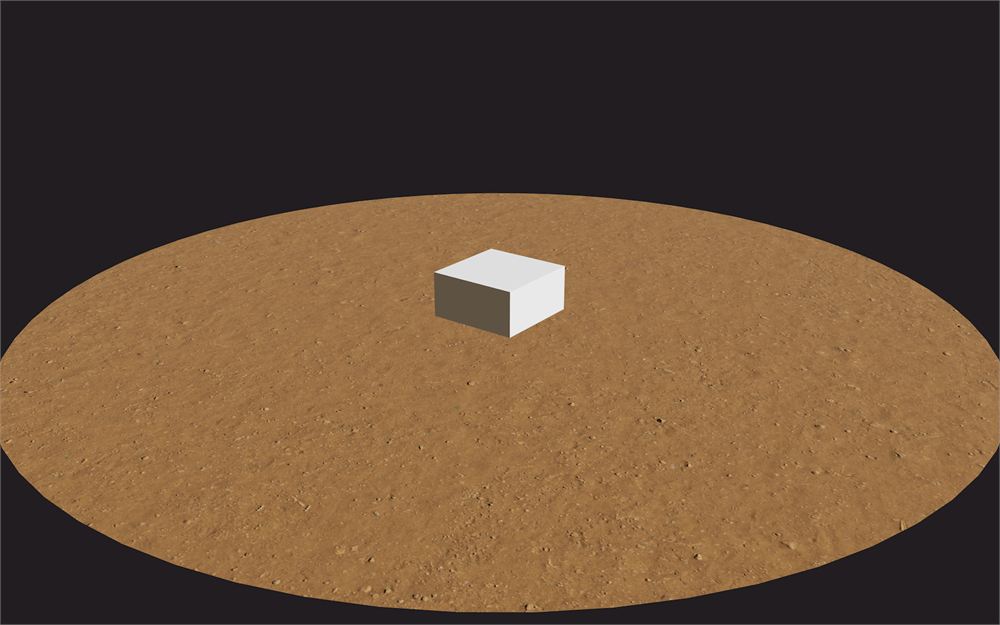
我们现在有了一个好看的地板,可以把那个盒子去掉了。
别在意缺失的阴影,我们稍后会修复它。
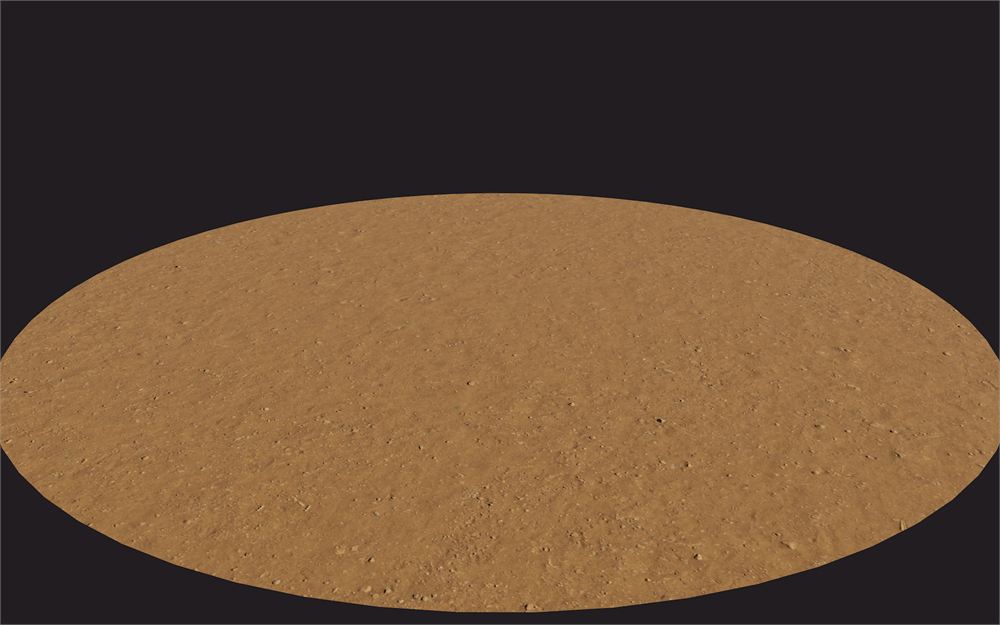
不,这不是一块煎饼。
Fox
狐狸的制作流程非常相似。我们将加载模型并把它添加到场景中。
区别在于动画。
通过把它添加到 sources.js,加载位于 /models/Fox/glTF/Fox.gltf 的模型:
export default [
    // ...
    {
        name: 'foxModel',
        type: 'gltfModel',
        path: 'models/Fox/glTF/Fox.gltf'
    }
]
在 /src/Experience/World/ 文件夹中创建一个 Fox 类:
import Experience from '../Experience.js'

export default class Fox
{
    constructor()
    {
        this.experience = new Experience()
        this.scene = this.experience.scene
        this.resources = this.experience.resources
    }
}
并在 World 类中实例化它,但要确保在 Environment 之前做这件事,因为 environment 会更新场景中的每个子级,而我们希望在这发生时狐狸已经在场景里:
// ...

import Fox from './Fox.js'

export default class World
{
    constructor()
    {
        // ...

        this.resources.on('ready', () =>
        {
            // Setup
            this.floor = new Floor()
            this.fox = new Fox()
            this.environment = new Environment()
        })
    }
}
在 Fox 类中,我们可以从 Resources 中获取该资源:
// ...

export default class Fox
{
    constructor()
    {
        // ...

        // Setup
        this.resource = this.resources.items.foxModel
    }
}
实际的模型可以通过我们名为 foxModel 的资源中一个名为 scene 的项来访问。但是,由于我们会在该资源中需要更多项,我们把它们全部保存为一个属性。
在一个单独的方法中,保存实际的模型、缩放它、把它添加到你的场景中,并确保它投射阴影。别忘了导入 three:
import * as THREE from 'three'
// ...

export default class Fox
{
    constructor()
    {
        // ...

        this.setModel()
    }

    setModel()
    {
        this.model = this.resource.scene
        this.model.scale.set(0.02, 0.02, 0.02)
        this.scene.add(this.model)

        this.model.traverse((child) =>
        {
            if(child instanceof THREE.Mesh)
            {
                child.castShadow = true
            }
        })
    }
}
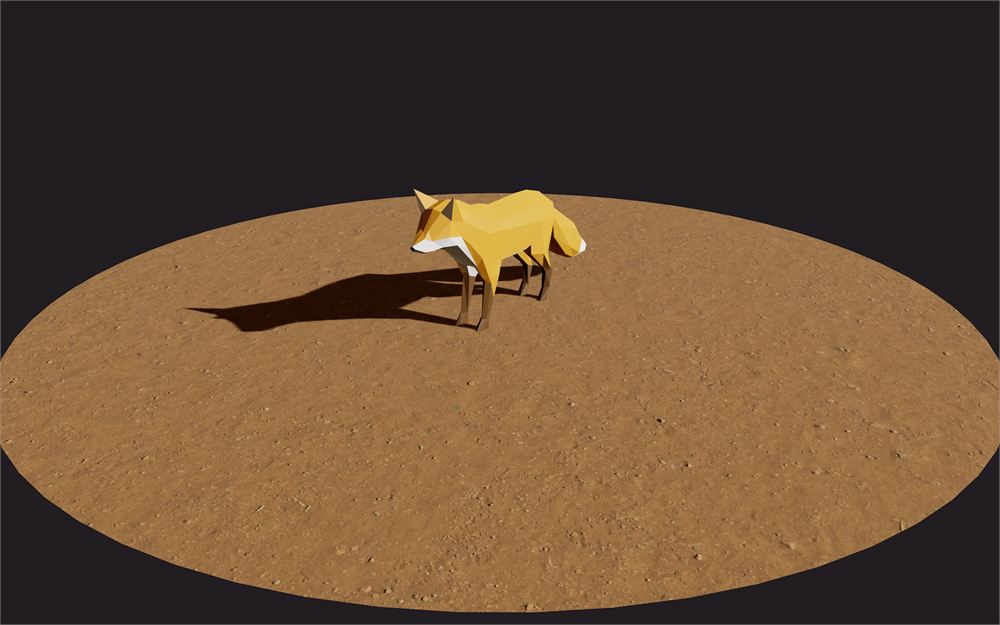
这是我们的狐狸,但我们还需要让动画运作起来。
在 Fox 类中创建一个 AnimationMixer,并添加来自 this.resource.animations 的第一个动画:
// ...

export default class Fox
{
    constructor()
    {
        // ...

        this.setAnimation()
    }

    // ...

    setAnimation()
    {
        this.animation = {}
        this.animation.mixer = new THREE.AnimationMixer(this.model)
        this.animation.action = this.animation.mixer.clipAction(this.resource.animations[0])
        this.animation.action.play()
    }
}
这是一个好的开始,但如果你还记得前面某一课的内容,我们需要在每一帧更新那个 mixer。
为此,我们将更新 World,而 World 将更新 Fox。
在 Experience 类中,更新 World。请确保在渲染之前做这件事:
//...

export default class Experience
{
    // ...

    update()
    {
        this.camera.update()
        this.world.update()
        this.renderer.update()
    }
}
在 World 中,更新 Fox,但首先,要确保它存在,因为模型可能还没有加载:
// ...

export default class World
{
    // ...

    update()
    {
        if(this.fox)
            this.fox.update()
    }
}
在 Fox 类中,获取 Time 类,因为我们会需要经过的时间,然后创建 update 方法,在其中更新 AnimationMixer:
// ...

export default class Fox
{
    constructor()
    {
        // ...

        this.time = this.experience.time

        // ...
    }

    // ...

    update()
    {
        this.animation.mixer.update(this.time.delta * 0.001)
    }
}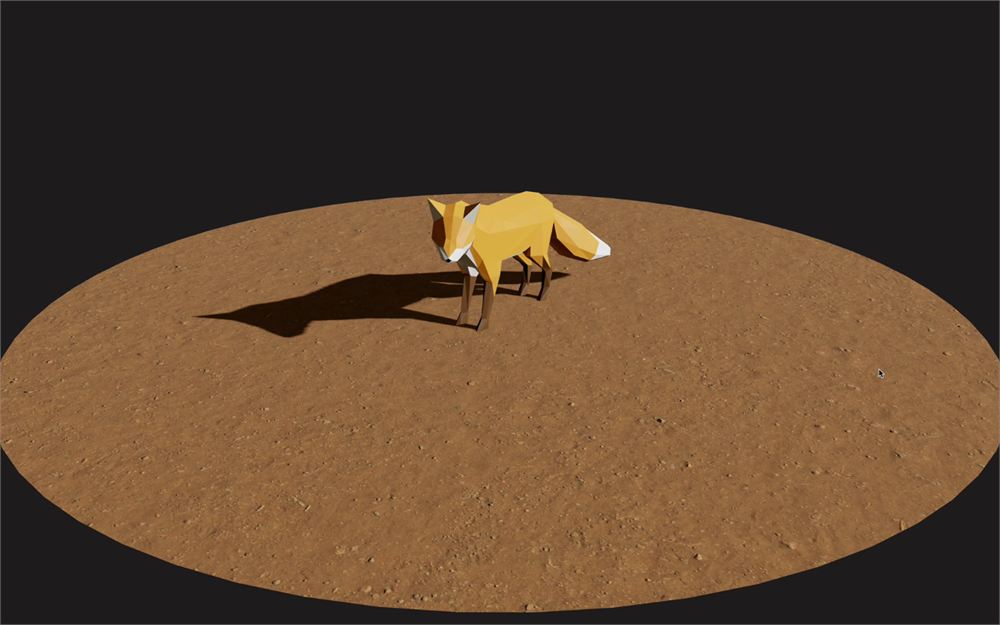
狐狸应该动起来了。
看起来我们完成了,但我们忘了一件事。
Debug
我们漏掉了非常重要的一部分,调试 UI。
添加类
在 /src/Experience/Utils/ 中创建一个 Debug 类:
export default class Debug
{
    constructor()
    {

    }
}
在 Experience 类中,于任何其他类之前实例化它:
// ...

import Debug from './Utils/Debug.js'

// ...

export default class Experience
{
    constructor(canvas)
    {
        // ...

        // Setup
        this.debug = new Debug()
        this.sizes = new Sizes()
        this.time = new Time()

        // ...
    }

    // ...
}
我们不会一直拥有调试 UI,而是让用户自己选择是否拥有它。
如果用户访问 URL 时末尾带有 #debug,他们就会拥有调试 UI。否则,就没有调试 UI。
这很方便,因为大多数用户访问网站时都不会看到 UI,但知道自己在做什么的用户(比如身为开发者的你)无需重新构建项目就能访问 UI。
要测试 URL 中是否存在 #debug,我们可以使用 window.location.hash:
export default class Debug
{
    constructor()
    {
        this.active = window.location.hash === '#debug'
    }
}
如果是这种情况,我们在 ui 属性中实例化 lil-gui。别忘了导入 lil-gui:
import GUI from 'lil-gui'

export default class Debug
{
    constructor()
    {
        this.active = window.location.hash === '#debug'

        if(this.active)
        {
            this.ui = new GUI()
        }
    }
}
通过在末尾添加 #debug 来访问该 URL。要注意,当改变或向 URL 添加 # 时,大多数浏览器不会自动刷新,你需要自己刷新。
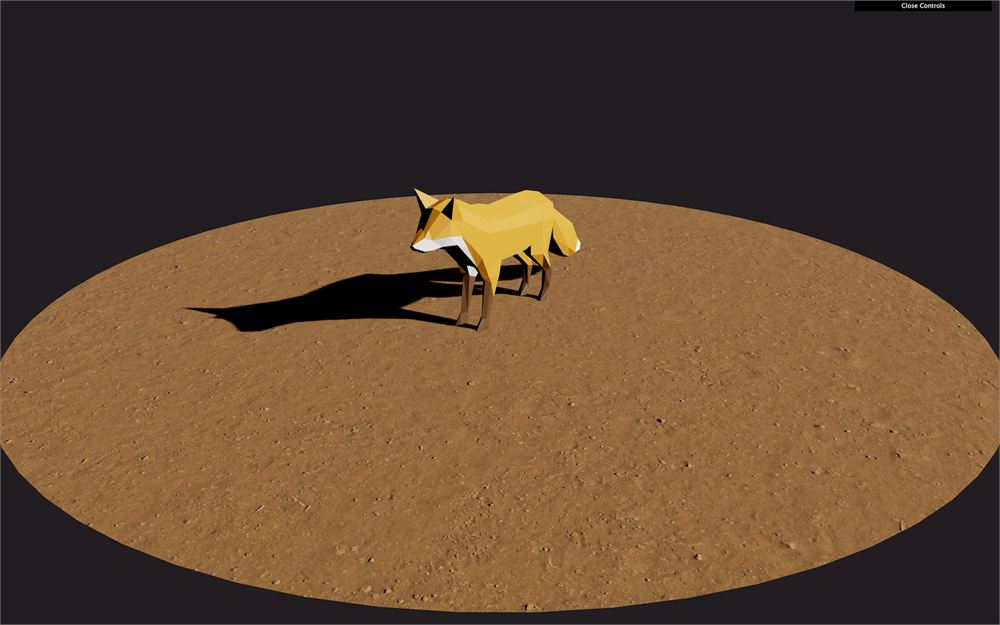
调试 UI 应该会出现在右上角。
调试 Fox
让我们从狐狸开始。作为一个小彩蛋,我们将创建三个调试按钮,让我们播放模型的三个不同动画。
首先,在 Fox 类中获取 Debug 类,并且如果 debug.active 为 true,就创建一个文件夹:
// ...

export default class Fox
{
    constructor()
    {
        // ...

        this.debug = this.experience.debug

        // Debug
        if(this.debug.active)
        {
            this.debugFolder = this.debug.ui.addFolder('fox')
        }

        // ...
    }

    // ...
}
在 setAnimation 方法中,我们将做一些改动。
首先,让我们创建 this.resource.animations 中可用的全部三个动作,并把它们保存在一个 actions 属性中:
// ...

export default class Fox
{
    // ...

    setAnimation()
    {
        this.animation = {}

        this.animation.mixer = new THREE.AnimationMixer(this.model)

        this.animation.actions = {}

        this.animation.actions.idle = this.animation.mixer.clipAction(this.resource.animations[0])
        this.animation.actions.walking = this.animation.mixer.clipAction(this.resource.animations[1])
        this.animation.actions.running = this.animation.mixer.clipAction(this.resource.animations[2])
    }

    // ...
}
然后,我们把其中一个保存在 current 属性中并播放它:
// ...

export default class Fox
{
    // ...

    setAnimation()
    {
        this.animation = {}

        this.animation.mixer = new THREE.AnimationMixer(this.model)

        this.animation.actions = {}

        this.animation.actions.idle = this.animation.mixer.clipAction(this.resource.animations[0])
        this.animation.actions.walking = this.animation.mixer.clipAction(this.resource.animations[1])
        this.animation.actions.running = this.animation.mixer.clipAction(this.resource.animations[2])

        this.animation.actions.current = this.animation.actions.idle
        this.animation.actions.current.play()
    }

    // ...
}
我们应该得到相同的结果,但现在,我们可以访问 walking 和 running 动画了。
当为模型播放新动画时,我们希望有一个平滑的过渡。为此,我们可以使用 AnimationAction 类中众多可用方法之一。
我们将使用 crossFadeFrom(...)。这个方法需要在即将进入的 action 上调用,以之前的 action 作为第一个参数,过渡时长(以秒为单位)作为第二个参数。我们还需要重置并播放新动画。
我们将把这些指令放在一个新方法中。在 animation 属性中,创建一个 play 方法:
this.animation.play = (name) =>
{
}
在那个 play 方法中,定义之前的 action 和新的 action:
this.animation.play = (name) =>
{
    const newAction = this.animation.actions[name]
    const oldAction = this.animation.actions.current
}
然后,重置新的那个、播放它,并执行一次 crossFadeFrom(...):
this.animation.play = (name) =>
{
    const newAction = this.animation.actions[name]
    const oldAction = this.animation.actions.current

    newAction.reset()
    newAction.play()
    newAction.crossFadeFrom(oldAction, 1)
}
最后,把新的 action 保存在 current 属性中,这样下次我们调用 play 函数时,它就会从那个 action 交叉淡入到新的 action:
this.animation.play = (name) =>
{
    const newAction = this.animation.actions[name]
    const oldAction = this.animation.actions.current

    newAction.reset()
    newAction.play()
    newAction.crossFadeFrom(oldAction, 1)

    this.animation.actions.current = newAction
}
理论上,我们的代码应该能工作。但有没有一种方法可以在不把按钮添加到调试 UI 的情况下测试它呢?
还记得我们把体验放在一个名为 experience 的全局变量中了吗。这意味着,在控制台中,我们可以输入:
window.experience.world.fox.animation.play('walking')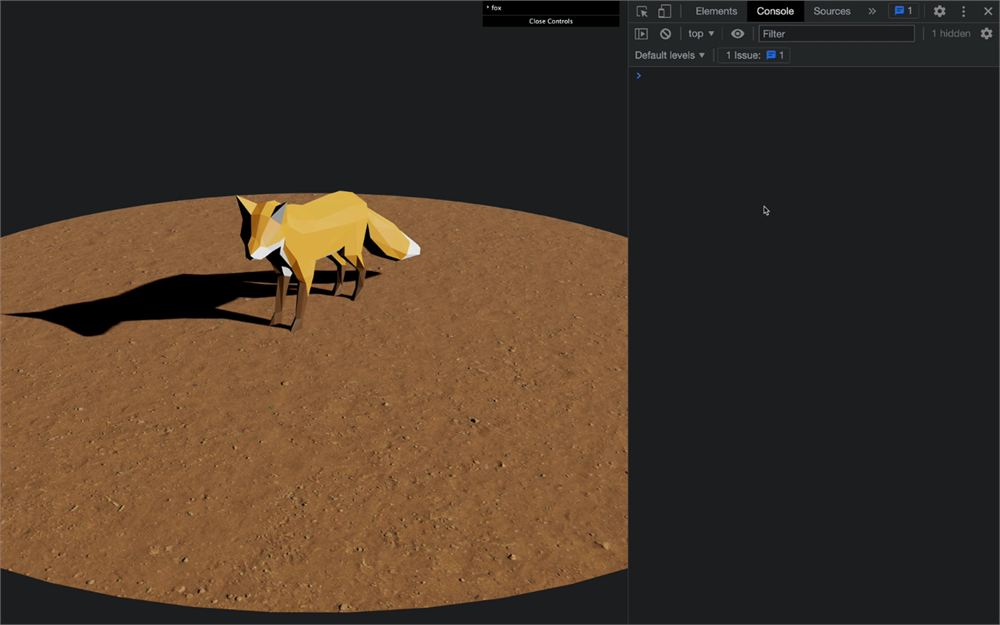
你应该会看到狐狸开始行走。
我们现在可以把调试按钮添加到我们的 fox 调试文件夹中。
请记住,lil-gui 需要该值作为属性可用。遗憾的是,我们不能直接把 this.animation.play 函数添加到 lil-gui,因为我们还需要发送要播放的 action 的名字。
我们将使用一个 debugObject,放入三个函数,每个函数都用相应的参数调用 this.animation.play:
// ...

export default class Fox
{
    // ...

    setAnimation()
    {
        // ...

        // Debug
        if(this.debug.active)
        {
            const debugObject = {
                playIdle: () => { this.animation.play('idle') },
                playWalking: () => { this.animation.play('walking') },
                playRunning: () => { this.animation.play('running') }
            }
            this.debugFolder.add(debugObject, 'playIdle')
            this.debugFolder.add(debugObject, 'playWalking')
            this.debugFolder.add(debugObject, 'playRunning')
        }
    }

    // ...
}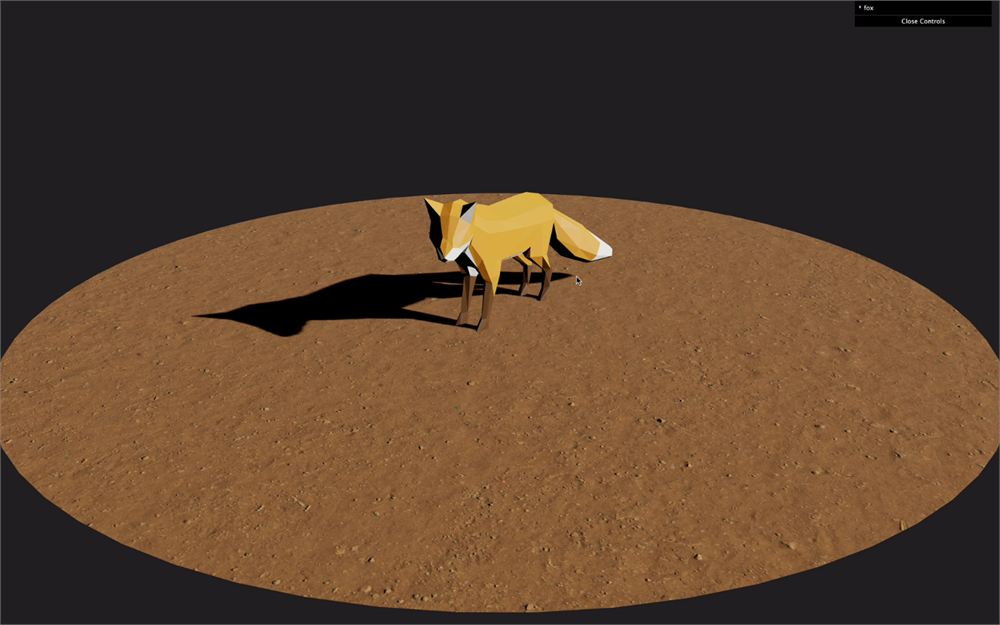
我们现在可以直接从调试 UI 测试不同的动画。
调试 environment
为了本课的目的,并确保我们可以使用调试 UI,让我们给 environment 添加一些调节项。
在 Environment 类中,获取 Debug,并且如果 active,就添加一个文件夹:
// ...

export default class Environment
{
    constructor()
    {
        // ...

        this.debug = this.experience.debug

        // Debug
        if(this.debug.active)
        {
            this.debugFolder = this.debug.ui.addFolder('environment')
        }

        // ...
    }

    // ...
}
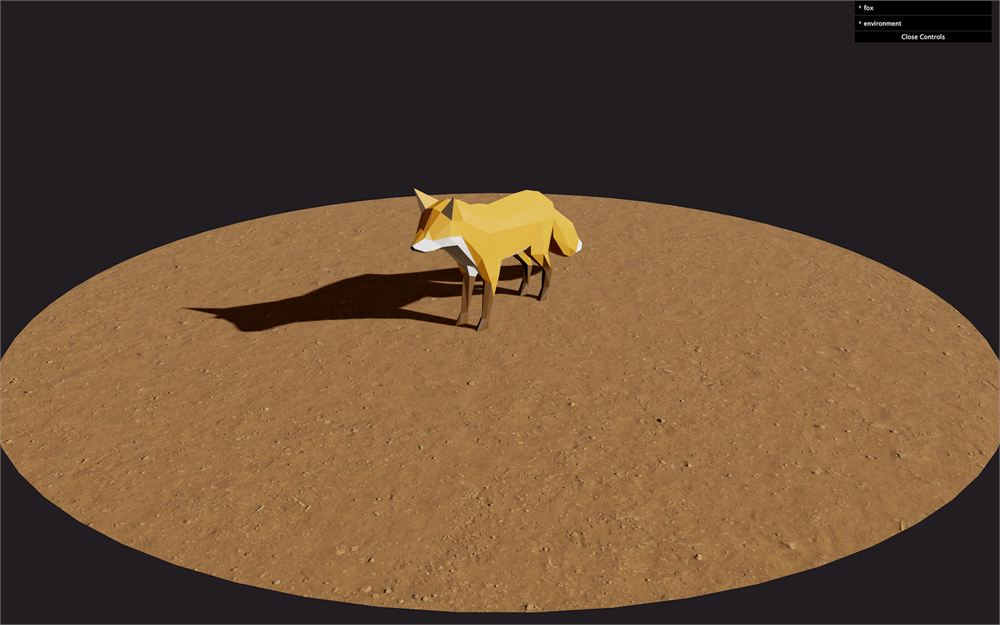
你应该会看到 environment 调试文件夹。
在 setEnvironment 函数中,向该文件夹添加一个针对 intensity 的调节项,并且别忘了在值发生变化时调用我们之前准备好的 this.environmentMap.updateMaterials 方法:
// ...

export default class Environment
{
    // ...

    setEnvironmentMap()
    {
        // ...

        // Debug
        if(this.debug.active)
        {
            this.debugFolder
                .add(this.environmentMap, 'intensity')
                .name('envMapIntensity')
                .min(0)
                .max(4)
                .step(0.001)
                .onChange(this.environmentMap.updateMaterials)
        }
    }
}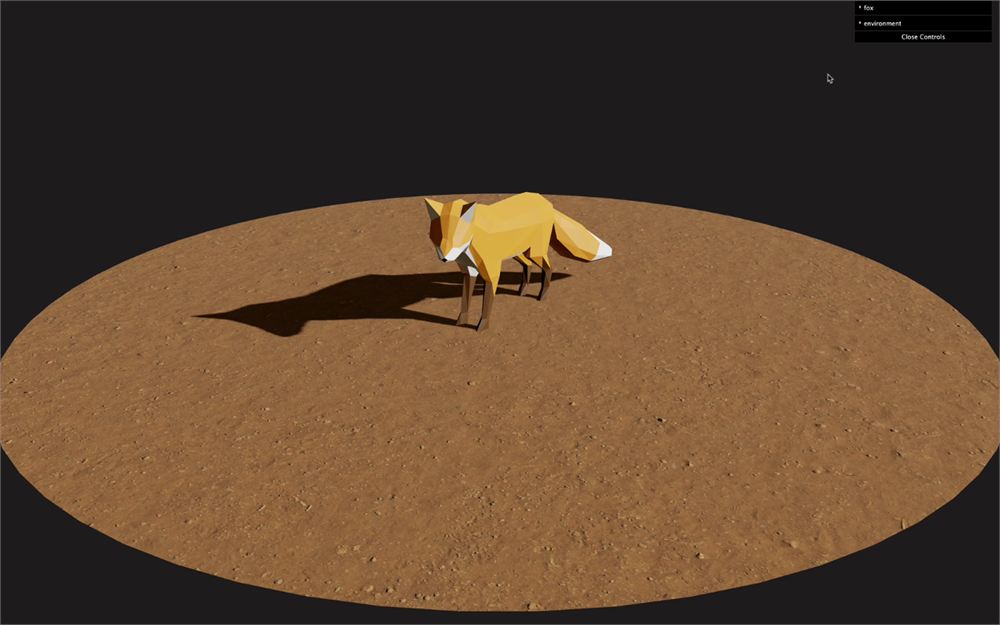
我们现在可以调节环境贴图的强度,场景的所有子级都会得到正确的更新。
让我们对 sunLight 也做同样的事情,并添加调节项来控制 intensity、position.x、position.y 和 position.z:
// ...

export default class Environment
{
    // ...

    setSunLight()
    {
        // ...

        // Debug
        if(this.debug.active)
        {
            this.debugFolder
                .add(this.sunLight, 'intensity')
                .name('sunLightIntensity')
                .min(0)
                .max(10)
                .step(0.001)

            this.debugFolder
                .add(this.sunLight.position, 'x')
                .name('sunLightX')
                .min(- 5)
                .max(5)
                .step(0.001)

            this.debugFolder
                .add(this.sunLight.position, 'y')
                .name('sunLightY')
                .min(- 5)
                .max(5)
                .step(0.001)

            this.debugFolder
                .add(this.sunLight.position, 'z')
                .name('sunLightZ')
                .min(- 5)
                .max(5)
                .step(0.001)
        }
    }

    // ...
}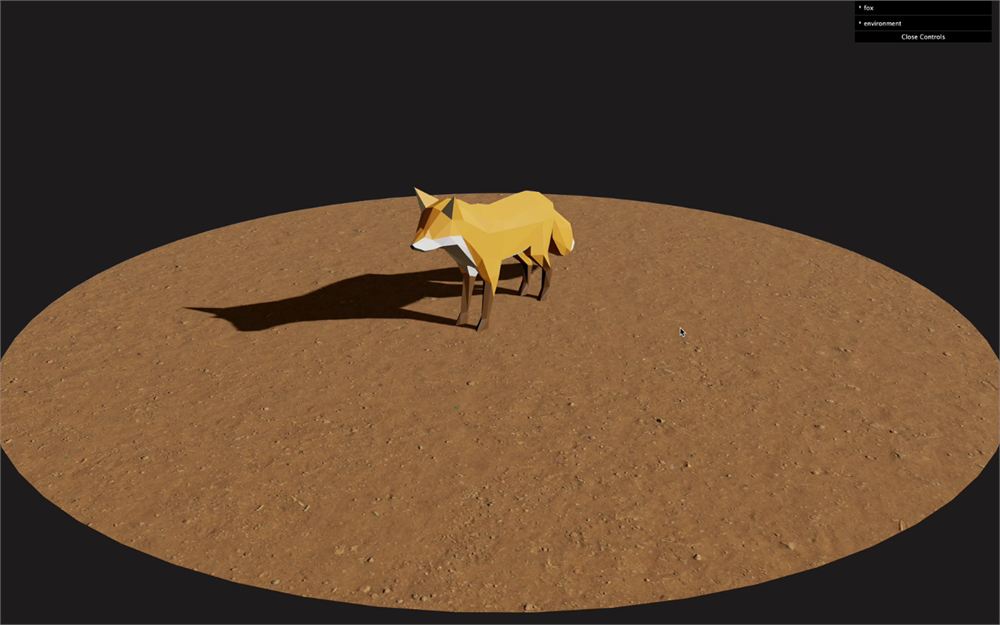
我们现在可以调节灯光了。
销毁
在某个时候,你可能需要销毁体验的一部分,甚至整个体验。这可能是因为动画结束了、玩家移动到了另一个关卡、WebGL 不再可见,或者也许狐狸跑掉了。
我们可以让一切保持原样,但这对性能不利。我们有每帧都被调用的函数、GPU 上的纹理、监听器等等。
在本节中,我们将销毁整个体验,并确保妥善地释放(dispose)各种东西。
停止时间和 resize 事件
首先,让我们给 Experience 类添加一个 destroy 方法。这个方法会使用 off() 停止监听 Time 和 Sizes 事件:
// ...

export default class Experience
{
    // ...

    destroy()
    {
        this.sizes.off('resize')
        this.time.off('tick')
    }
}
off() 是 EventEmitter 类的一部分,它会移除附加到该实例上的所有监听器。
要测试它,我们可以在浏览器控制台中调用 window.experience.destroy()。
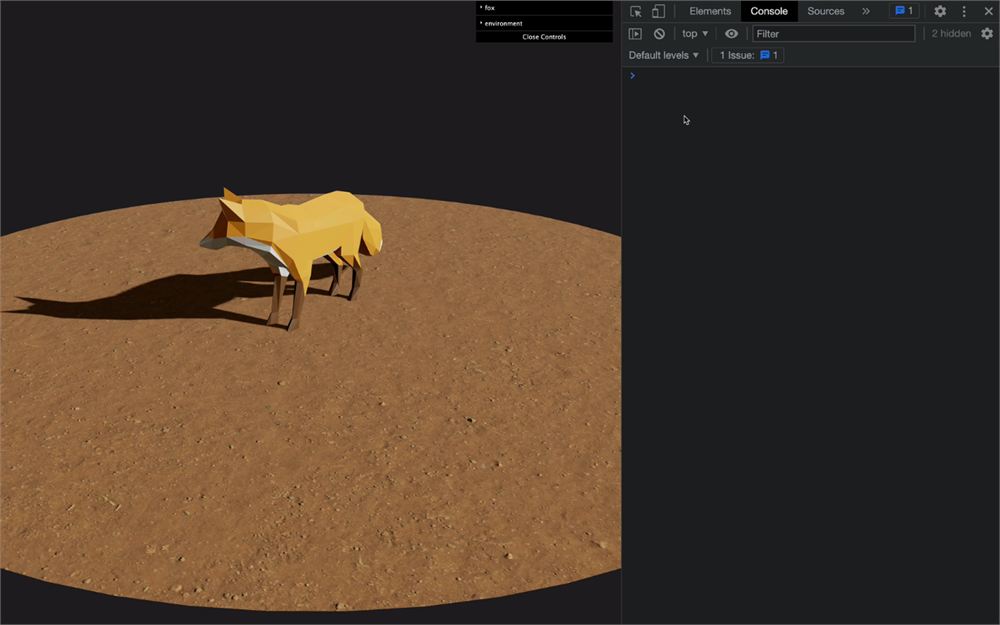
动画应该会停止,因为我们不再监听 tick 事件,而且我们的 update() 函数不再被调用。
释放场景中的所有东西
我们现在要遍历场景,寻找我们想要释放的东西。
首先,让我们在场景上使用 traverse() 函数:
// ...

export default class Experience
{
    // ...

    destroy()
    {
        this.sizes.off('resize')
        this.time.off('tick')

        // Traverse the whole scene
        this.scene.traverse((child) =>
        {
            console.log(child)
        })
    }
}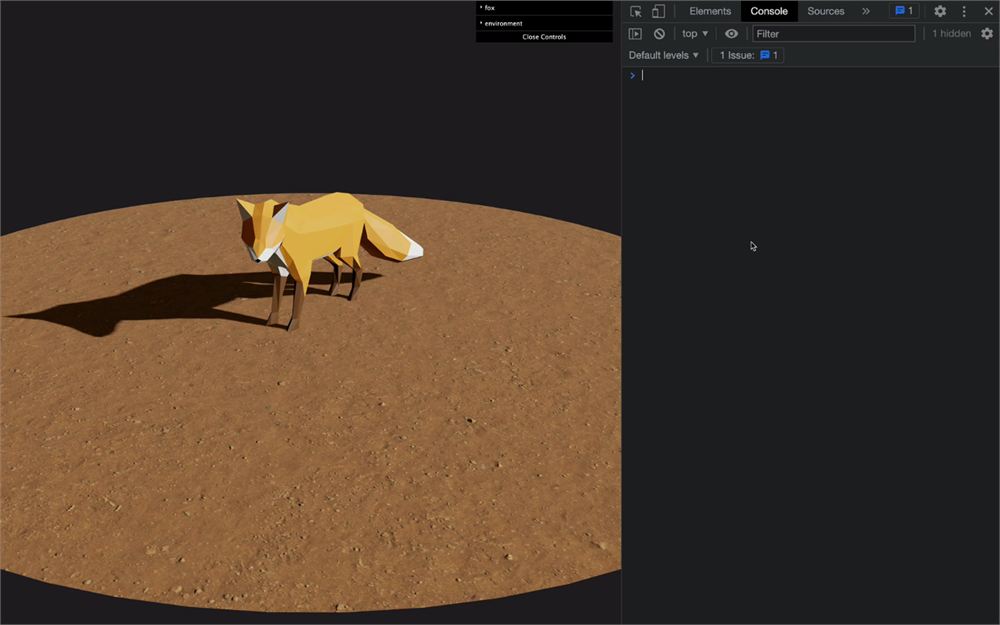
你应该会看到场景中的每个子级(甚至是子级的子级)都被打印到控制台。
如果你参考 Three.js 文档(How to dispose of objects),你会看到我们需要释放 geometries、materials、textures,然后还有一些特定的东西,比如 controls、passes 等。
以下是我们对每个子级的处理方式:
- 测试它是否是一个 Mesh。
- 在
geometry属性上调用dispose()函数。 - 遍历
material属性的每一个键。 - 如果该键上有可用的
dispose()函数,就调用它。
这样,我们就不需要测试材质的每一种可能的贴图,就能释放场景中的所有纹理和几何体:
// ...

export default class Experience
{
    // ...

    destroy()
    {
        this.sizes.off('resize')
        this.time.off('tick')

        // Traverse the whole scene
        this.scene.traverse((child) =>
        {
            // Test if it's a mesh
            if(child instanceof THREE.Mesh)
            {
                child.geometry.dispose()

                // Loop through the material properties
                for(const key in child.material)
                {
                    const value = child.material[key]

                    // Test if there is a dispose function
                    if(value && typeof value.dispose === 'function')
                    {
                        value.dispose()
                    }
                }
            }
        })
    }
}
这是一种非常精简的销毁场景中所有东西的方式。你可能会发现在特定的类中会有例外,但我们这里的尝试是让事情尽可能简单。
释放 controls
还有一点清理工作要做。camera 不需要被释放,但 OrbitControls 需要:
// ...

export default class Experience
{
    // ...

    destroy()
    {
        // ...

        this.camera.controls.dispose()
    }
}
释放 Renderer
WebGLRenderer 也有一个 dispose 方法,我们可以在不需深入了解它的情况下调用它。
// ...

export default class Experience
{
    // ...

    destroy()
    {
        // ...
        this.renderer.instance.dispose()
    }
}
要注意,如果你使用了 post-processing,你将需要释放 EffectComposer、它的 WebGLRenderTarget,以及你正在使用的任何可能的 passes。
释放 debug
我们使用 lil-gui 作为调试 UI,它很容易销毁。我们需要做的只是调用它的 destroy() 方法,但我们需要确保在这样做之前 debug 当前是激活的:
// ...

export default class Experience
{
    // ...

    destroy()
    {
        // ...
        if(this.debug.active)
            this.debug.ui.destroy()
    }
}
就这样。你现在可以在控制台中调用 window.experience.destroy()。
警告与进一步的释放
如你所见,销毁东西有点棘手。你将不得不深入研究所用到的不同组件,并确保你妥善释放了一切。
我们没有移除 <canvas>,最后一帧仍然渲染在其中,但如果有需要,你可以把它从页面中移除。
要注意,当我们停止监听 Sizes 和 Time 事件时,那些类仍然会监听原生事件。这没什么大不了的,但如果你有点吹毛求疵,你也可以处理它们的释放。
还有一点需要承认的是,为了简单起见,我们把所有东西都写在了同一个 destroy() 方法中。如果你有一个更复杂的项目,有很多需要销毁的东西,你可能想要为每个需要它的类都创建一个 destroy() 方法。这样,体验就会像我们对 update() 和 resize() 方法所做的那样,把 destroy() 传播给它的子级。
总结
用模块和类来组织代码起初可能看起来很难,甚至适得其反,但一个真实的 Three.js 项目可能会变得非常庞大,如果你想把项目做好,最好还是不要有意大利面式的代码。
拥有这些独立的类也非常有利于在其他项目中重用它们。我们创建的大多数 Utils 类都可以不做任何修改就重用。
组织代码还能营造一个良好的环境,便于与其他开发者协作并减少冲突。每个开发者都可以专注于一个特定的类。
我们在本课中做出的许多决定都源于我个人的偏好。你应该着手研究你自己的结构,并创建一个模板,以便你能更快地开始一个新项目。请随时把你的结构分享给他人。